

Good news: You can absolutely share your YouTube videos on Instagram! It’s a great way to expand your audience and breathe new life into content you’ve already created. Just download your video, trim and resize it for Instagram Reels or Stories, and post it with a few edits. Ready to boost your views? Let’s dive into the how-to!
In This Article:
Sharing A YouTube Video On Instagram Can Boost Your Online Presence!
By cross-posting a YouTube video on Instagram, you can:
- Expand audience reach: Instagram and YouTube serve different demographics. Sharing on Instagram introduces your content to a broader and potentially untapped audience.
- Boost engagement with short-form content: Instagram’s preference for short videos (Instagram Reels, Stories) helps drive higher likes, shares, and comments. These quick clips can lead viewers to your full YouTube video.
- Maximize content value: Repurposing YouTube content saves time and extends its lifespan. Instead of creating new content for every platform, you get more mileage from one video.
- Strengthen brand presence across platforms: Sharing across platforms builds consistency in your messaging and visuals. This helps followers recognize and trust your brand wherever they find you.
- Drive traffic back to YouTube: Well-crafted Instagram teasers with calls-to-action can direct viewers to your YouTube channel. This increases views and subscriber growth from social crossover.
Why Sharing A YouTube Video But Not The Link?
Some readers argue that sharing the YouTube video link on Instagram is enough. Why all the hassle of downloading and re-uploading it? We tested this before, not only on Instagram but other social media platforms.
However, the reach was rather limited because, honestly, they didn’t promote links outside of their platforms. Not to mention, the aspect ratio of a YouTube video doesn’t always match what Instagram prefers. That’s why we decided to post the video as brand-new content on Instagram so it can reach a broader audience.
Some folks are also afraid that cross-posting doesn’t work with YouTube videos since the Instagram audience might not be interested in long-form content. They only make “courtesy clicks” that don’t count as real views on YouTube.
In fact, when we cross-posted videos on Instagram and included our YouTube channel link on our bio, we noticed a slight increase in the number of views and subscribers.
So, even if the audience only makes “courtesy clicks” and doesn’t watch your videos for long, they already know about your channel. It’s a good way to boost name recognition. The key is to let them know your channel exists, whether by adding a link to your bio or in the comment section.
How To Share A YouTube Video On Instagram Feed
Step 1. Download the YouTube video
Use a YouTube downloader (e.g., TubeMate, VLC, or an online tool) to save the video to your device in .mp4 or .mov video format.
Step 2. Resize the video
Use a video editor like CapCut to adjust the aspect ratio to 1:1 (square) or 4:5 (portrait), which performs better on the Instagram feed while maintaining the video resolution.

Step 3. Trim if necessary
Instagram allows feed videos up to 60 minutes, but shorter Instagram feed videos under 1 minute typically get better engagement.

Step 4. Add captions and effects
Enhance your video with text, filters, or music using an editing tool to make it visually appealing.
Step 5. Upload to Instagram
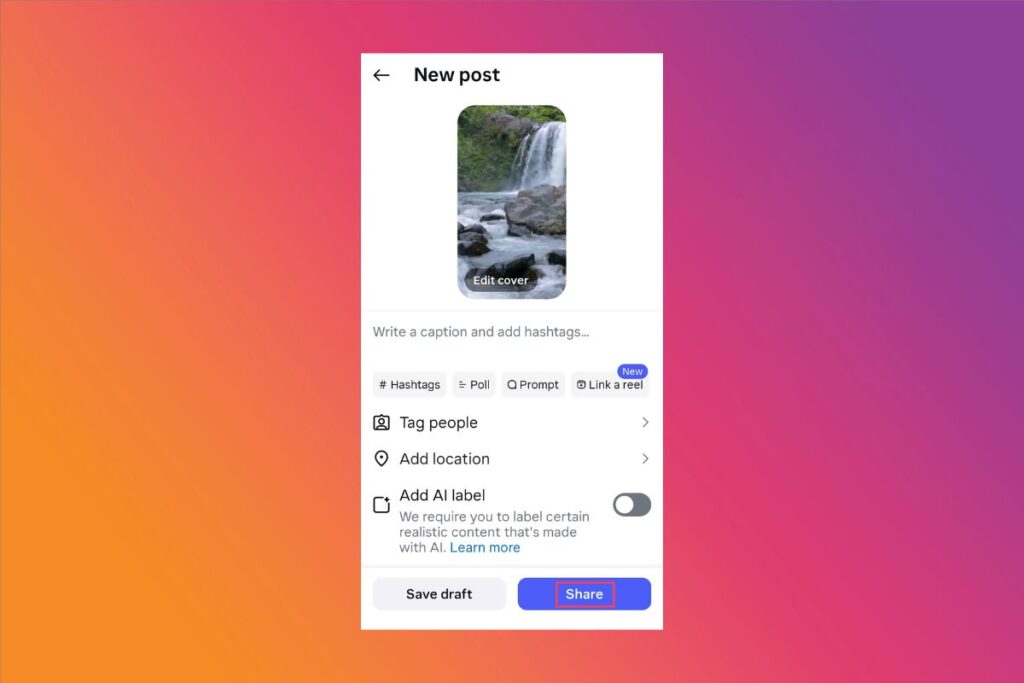
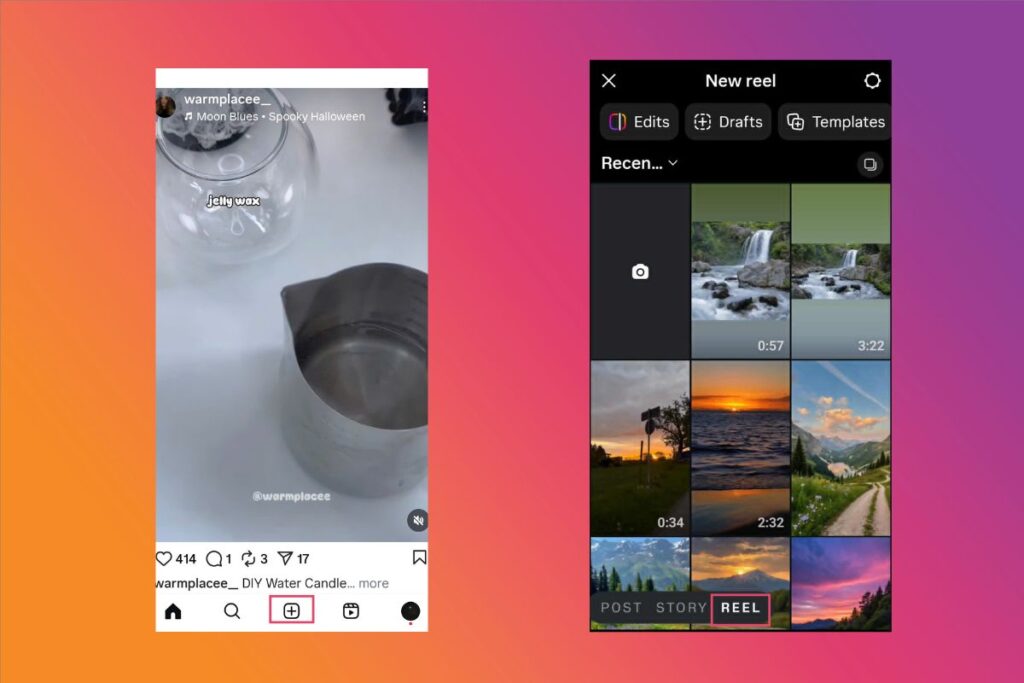
Open Instagram, tap the + icon, select Post, choose your video, write a caption, add hashtags.

Tap Share to done
How To Share A YouTube Video On Instagram Story
Step 1. Download your YouTube video
Save the video to your phone using a downloader app or browser tool.
Step 2. Edit the video for stories
Use an app or online tool like CapCut to crop and resize it to 9:16 (vertical) aspect ratio.

Keep each clip under 60 seconds.

Step 3. Add text, stickers, or GIFs
Use Instagram’s built-in tools to make your Story more interactive and engaging.
Step 4. Add a YouTube link (Optional)
Tap the Link sticker and paste your YouTube video URL to drive traffic back to your channel.

Step 4. Post the Story
Once ready, tap Next, then Share to publish your YouTube snippet as an Instagram Story.
How To Post A YouTube Video On Instagram Reels
Step 1. Download the YouTube video
Use a mobile or desktop downloader to save your content in .mp4 format.
Step 2. Resize and crop
Open a video editing app or tool and adjust the video to a 9:16 aspect ratio (vertical full-screen).
Step 3. Trim to under 90 seconds
Instagram reels must be 90 seconds or less. Cut out the most engaging or valuable section of your video.

Step 4. Add captions and sound
Many Instagram users watch without sound. Use auto-caption tools and consider adding trending music for more visibility.
Step 5. Upload as a Reel
In Instagram, tap +, select Reel, upload your video, write a caption, add hashtags, and tap Share.
7 Tips To Promote Your YouTube Video After Sharing It On Instagram
Create a Teaser Clip
Trim your full video into a brief, high-impact teaser that hooks attention within the first few seconds. Focus on a cliffhanger, bold claim, or exciting moment to entice viewers to watch more.
Add Subtitles or Captions
Many users browse Instagram with sound off. Captions ensure your message is delivered visually. Use stylized subtitles to highlight key phrases and improve retention.
Use Relevant Hashtags
Strategically select 3–5 hashtags to categorize your content and improve visibility. Blend trending, niche, and branded tags to reach both broad and targeted audiences.
Include a Strong Call-to-Action (CTA)
Tell viewers what to do next—whether it’s to comment, tag a friend, or watch the full video. A compelling CTA increases engagement and directs attention purposefully.
Pin a Comment With Your YouTube Link
Since captions can’t host clickable links, pin a comment with your YouTube channel name or search instructions. It keeps your CTA top-of-mind for anyone engaging with your post.
Choose a Thumbnail Wisely
Your thumbnail or cover image is often the first visual cue that grabs attention. Pick a frame that is visually striking, has good contrast, and hints at the content’s value or emotion.
Use Engaging Visual Elements and Sound Effects
Add overlays, animations, or transitions to enhance visual storytelling. Complement the visuals with sound effects or music to make your video more dynamic and immersive.
Share Your Favorite YouTube Video Now!
Don’t let your great content sit on just one platform! Sharing your YouTube videos on Instagram is one of the smartest ways to expand your reach and repurpose content efficiently. With just a few edits, your YouTube video can become a scroll-stopping Reel or Story.
Need help with video creation or editing? Don’t hesitate to reach out; we’re here to help you shine!