

Instagram supports a variety of video formats, each with its own length limit, from quick 60-second Story clips to 4-hour Live streams. In general, uploading is as simple as tapping the + icon, selecting your video, enhancing it with filters or captions, and hitting share.
In this guide, you’ll find step-by-step instructions on how to post long videos on Instagram in any format. Read on to make sure your next post fits perfectly!
In This Article:
How Long Of A Video Can You Post On Instagram?
The video length limit can vary based on the type of video you want to post:
- Instagram Feed Video: If you upload from the Instagram mobile app, the video can be up to 20 minutes long. Meanwhile, desktop uploads allow for videos of up to 60 minutes.
- Instagram Story: A single Instagram story can be as long as 60 seconds.
- Instagram Reels: The maximum length is 90 seconds.
- Instagram Live Video: You can stream for up to 4 hours per session. Lives can be saved and posted afterward as regular videos, subject to feed limits.
- Instagram Carousel Video Posts: You can post up to 10 clips per carousel. Each clip can be up to 1 minute long, allowing a maximum of 10 minutes total when chained.
How To Post A Long Video On Instagram Feed
Step 1. Prepare your video
Edit your clip to fit Instagram’s length rules (20 minutes for mobile app and 60 minutes for desktop). For videos exceeding limits, trim or split into smaller segments. Change it to the correct aspect ratio if needed.
Step 2. Open Instagram
On Instagram mobile app: Tap the + icon at the bottom and choose Post.

On desktop: Click the Create button at the top right.

Step 3. Select your video
Choose from your gallery/files, or drag-and-drop on the desktop.
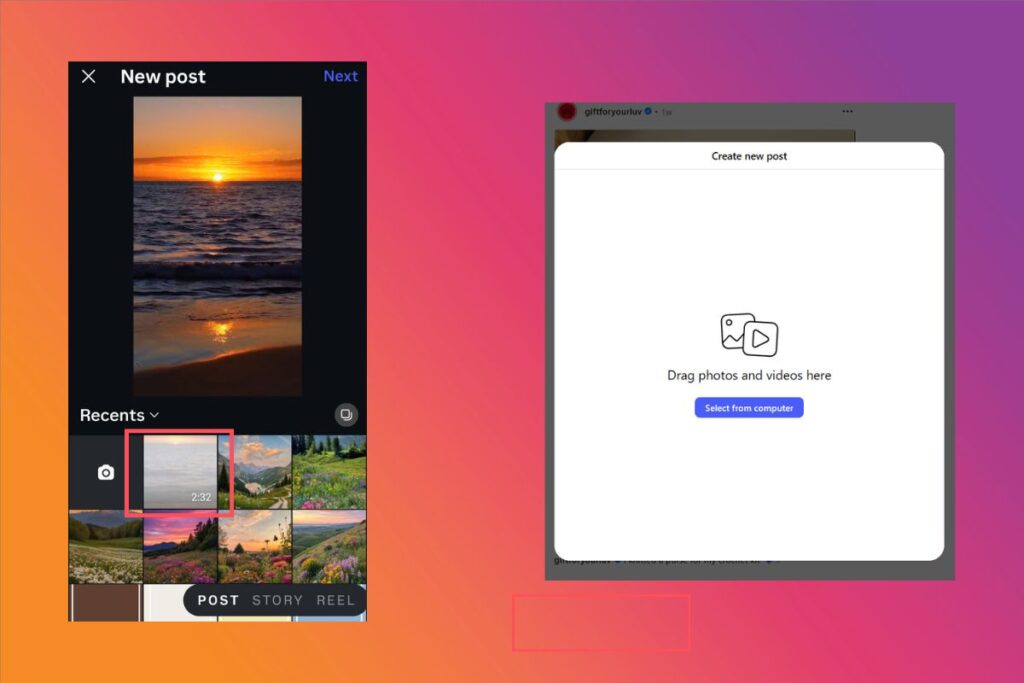
Step 4. Edit and enhance
Use Instagram’s trimming, filters, or captions. Add a cover image to make it stand out in the feed.
Step 5. Post your video
Add your caption, tags, and location. Tap Share (mobile, desktop)

How To Post Longer Videos On Instagram Reels
Step 1. Edit your video
Use a video editor (or Instagram’s built-in tools) to cut your content into under-90-second segments. Keep it as a vertical video.
Step 2. Open Reels creation
Tap the + icon, then select Reel.
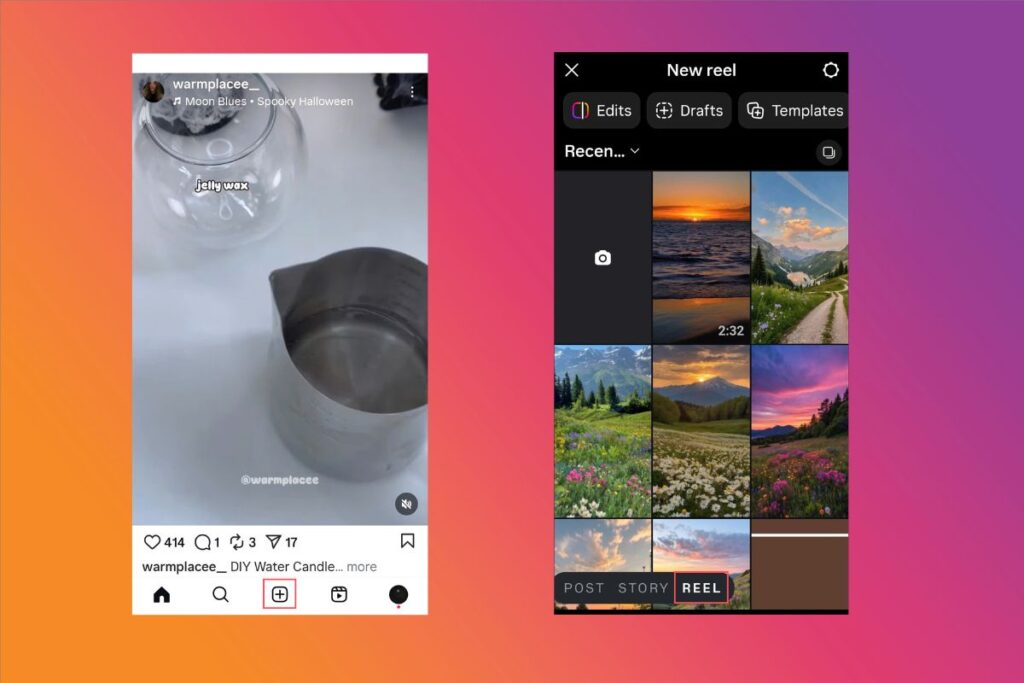
Step 3. Upload or record
Upload your edited clip(s) or record directly within Instagram.
Step 4. Add creative elements
Include trending sounds, effects, captions, and transitions to boost engagement.
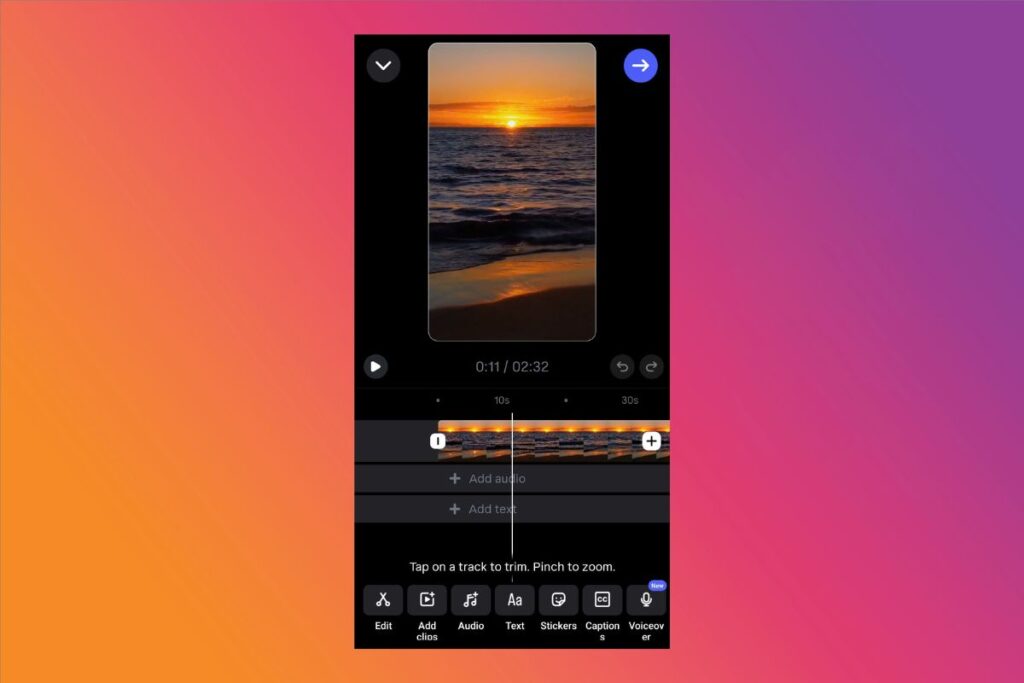
Step 5. Publish your video reel
Add a caption, hashtags, and tag collaborators before tapping Share.

How To Upload Long Videos To Instagram Stories
Step 1. Break down longer videos
Use a video editor or a video splitter app to split your content into 15-second chunks. Change it to a vertical aspect ratio for the best outcome. Save them in order for smooth sequencing.
Step 2. Open Story creation
Swipe right from your feed or tap the + icon and select Story.
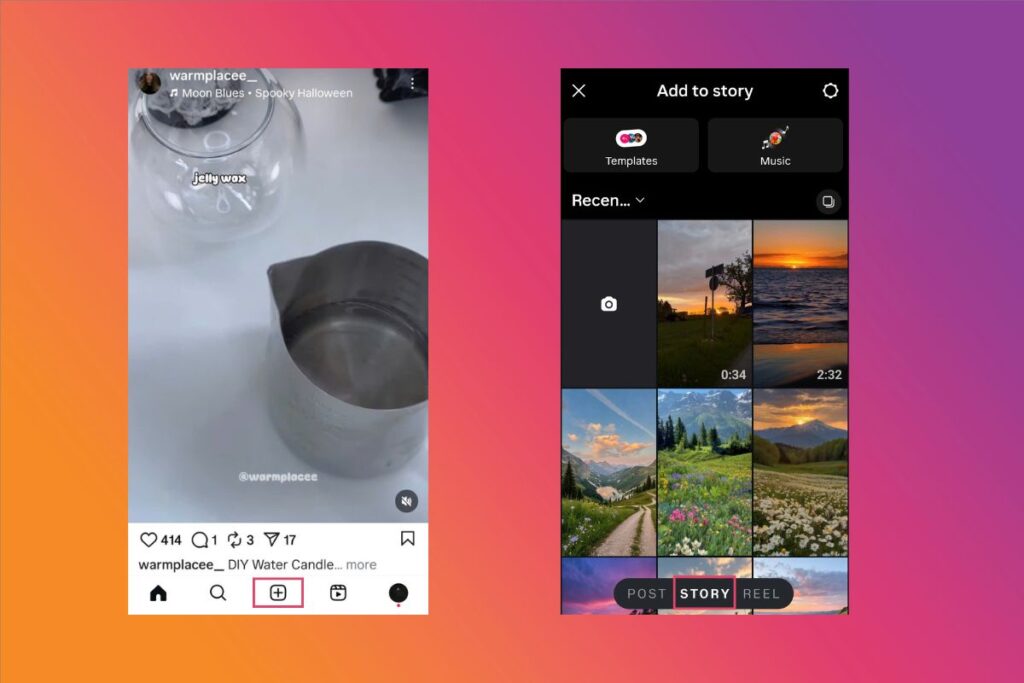
Step 3. Upload clips sequentially (Optional)
Select multiple clips in order to maintain continuity.
Step 4. Enhance with text, stickers, and tags
Add interactive elements to keep viewers engaged.
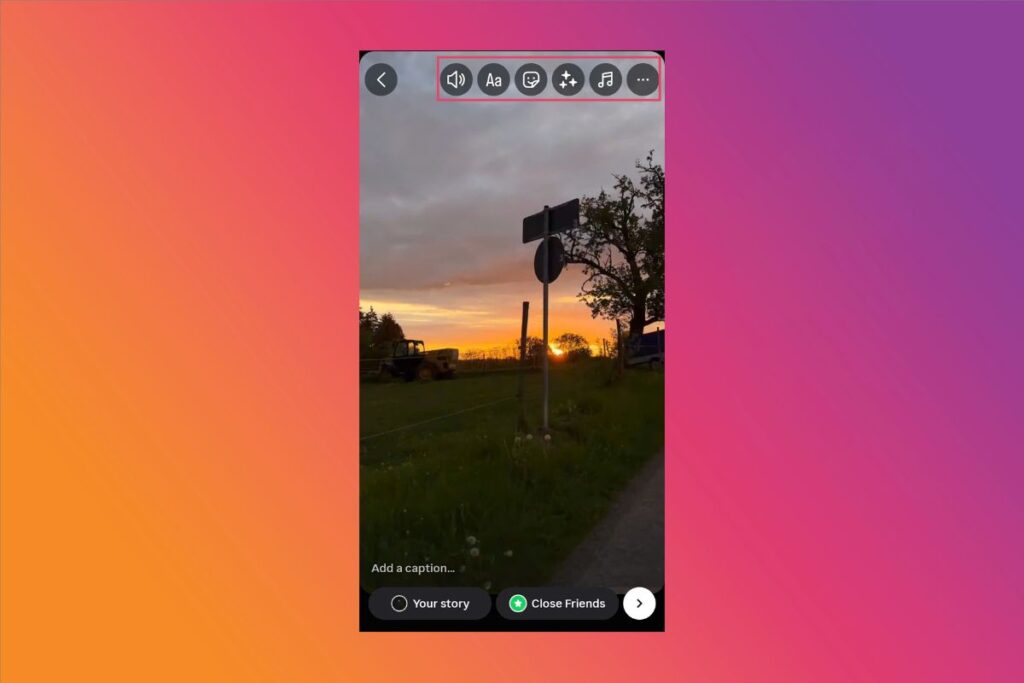
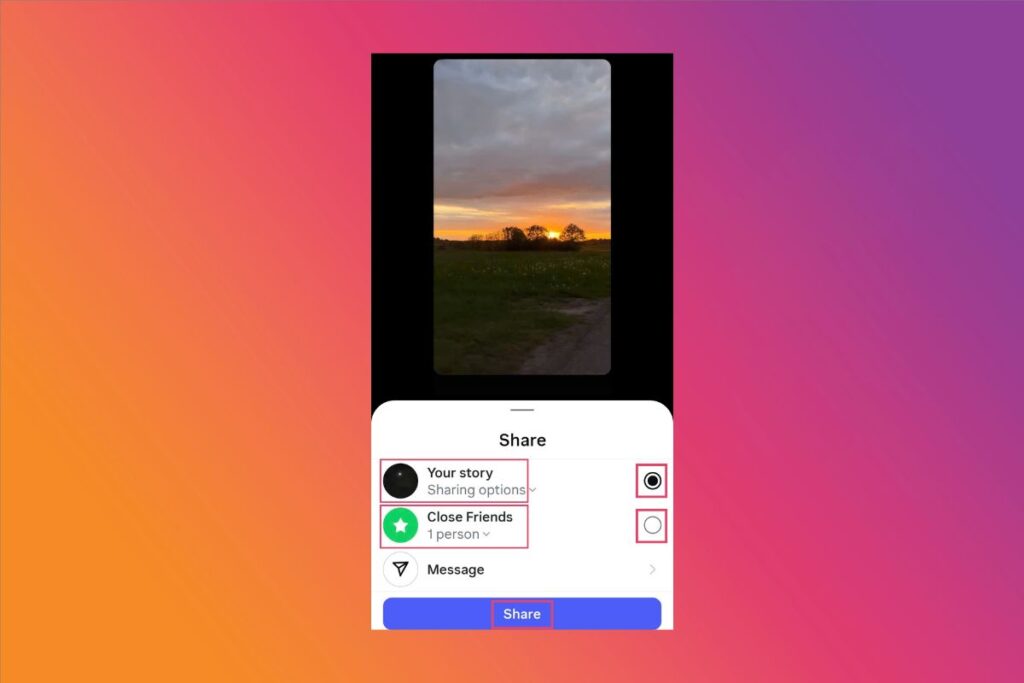
Step 5. Share your story
Tap Your Story to make it public, or Close Friends for a limited target audience.
How To Upload A Long Live Video?
Step 1. Go Live
Open Instagram, swipe right, and select Live from the bottom menu. Check your internet connection for stable streaming.
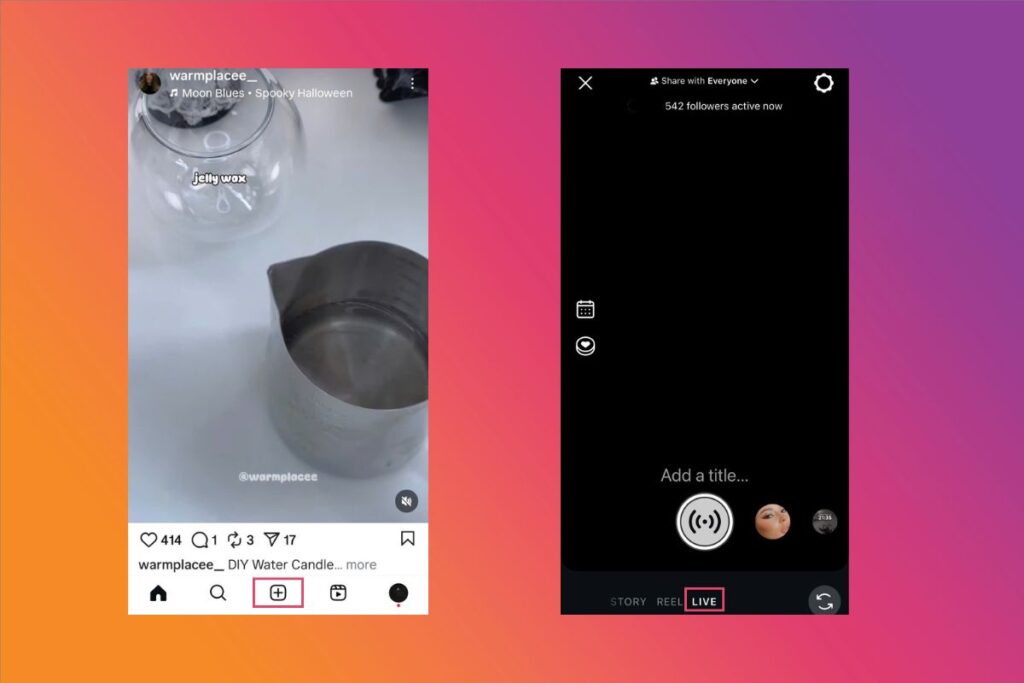
Step 2. Stream your content
You can broadcast for up to 4 hours per session. Engage with viewers through comments and Q&A during the stream.
Step 3. End your live session
Tap the X button in the top right corner when done.
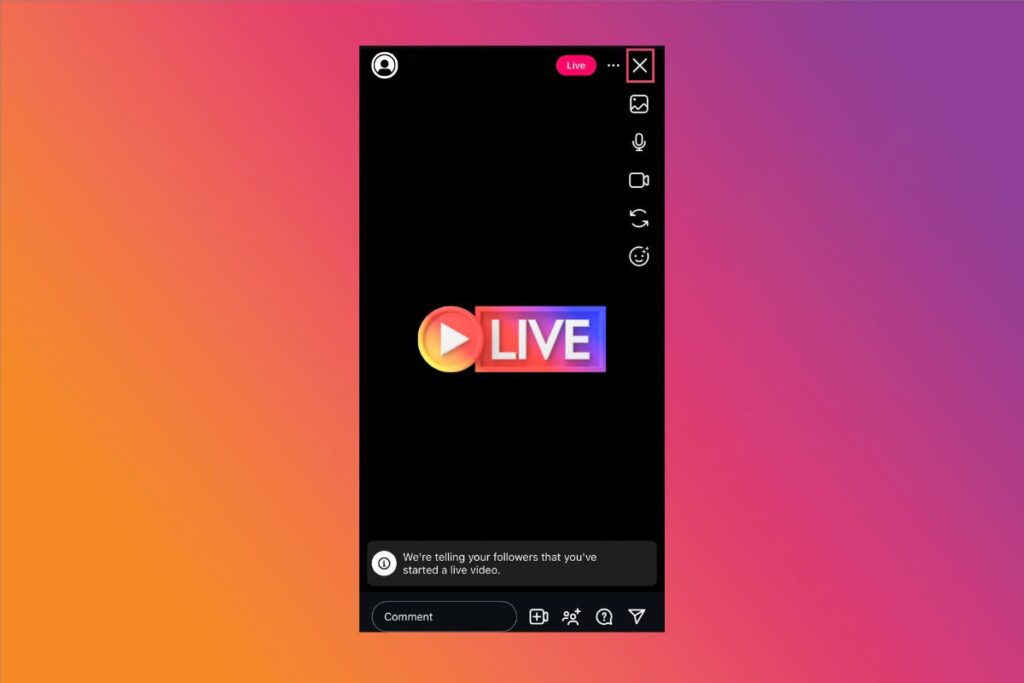
Step 4. Save and share
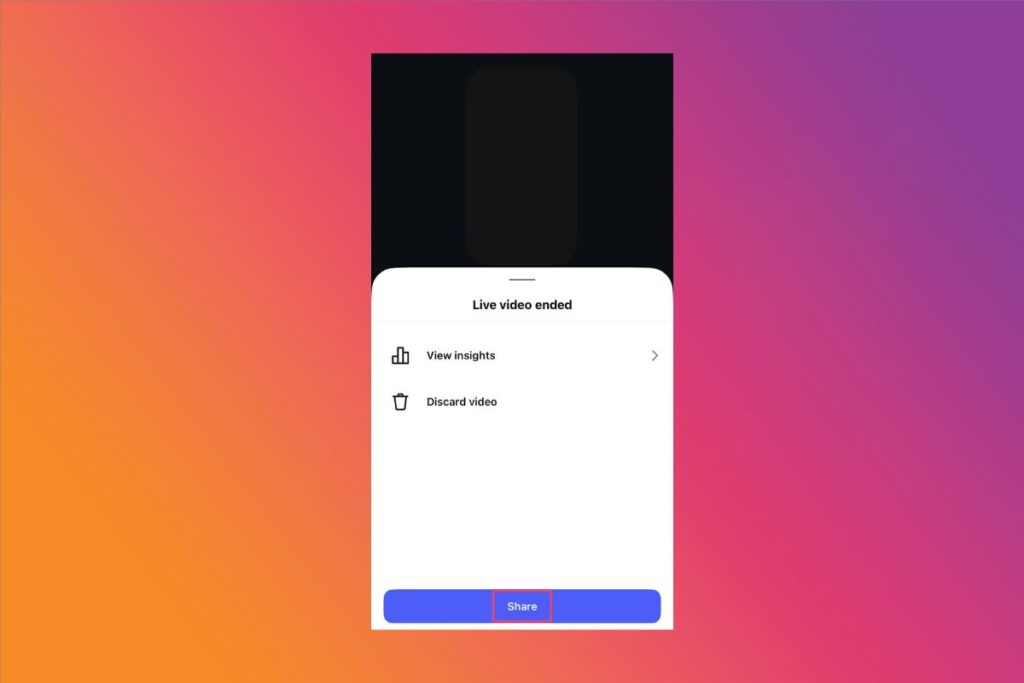
After ending the live, choose Share to IGTV (or feed) to keep it available for replay. Remember that the saved replay must fit the feed video length limits.
Step 5. Edit and enhance
Add a title, description, and cover image to make it appealing.
How To Post A Long Instagram Carousel
Step 1. Edit your clips
Break your long video into 1-minute segments. Save them in order for easy uploading.
Step 2. Create your carousel post
Tap the + icon and choose Post.

Select Multiple (icon with two stacked squares) to upload multiple files.

Step 3. Arrange the sequence
Order your videos or photos so the story flows naturally. You can choose up to 10 clips.
Step 4. Add captions and tags
Write a caption that ties all carousel items together. Tag relevant people or brands in each slide if needed.
Step 5. Publish
Tap Share to post your carousel to your feed.

What If My Video Is Longer Than The Length Limit?
We’ve all been there, wanting to post a full video but Instagram keeps trimming it to its limit. Here are four tried-and-true ways we tested that can help you out:
Trim Your Videos
The easiest way is to follow the rule! Trim off any unnecessary parts to make the video stay within the length limit. You can also eliminate transitional effects or shorten the introduction and conclusion sections. If you’ve done right, chances are the video can deliver its whole message without exceeding the limit.
Cut Out Highlight Clips And Add A Link
If you can’t trim off any part of the video, consider creating a highlight clip and uploading it. This short snip will act as a teaser, and you can add the link to the full version on other social media platforms to your bio or under the comment section.
Spice up the teaser with visual hooks and sound effects to make it more engaging, driving more viewers to your video. We usually post the full video on YouTube and create a separate teaser to upload it on Instagram to attract the audience. It really brings more real views and subscribers to our channel.
Speed It Up
This trick is our last resort when we want to post the entire video on Instagram without trimming any part. Speeding a video up can shorten its length without affecting the content.
Any video editing tool can help you with this. We often go for 1.25x or 1.5x at max because speeding it up too fast may impair the content and even annoy the audience.
Change The Way You Post It
Just keep it simple: if a video is too long for a Story, why not upload it as a Reel or a Post? You can post a video of up to 60 minutes on your Instagram feed.
Some readers ask us: Instagram recently allows for 3-minute Reels, but why can’t I post anything longer than 90 seconds? In fact, the feature of 3-minute reels is still rolling out, so not every account has this ability. If your account doesn’t allow this, think of posting your video as a Post like we shared.
Don’t Shy Away From Long Videos!
In a world dominated by quick Reels and short clips, long-form Instagram videos can actually help you stand out. They give content creators more space to tell a story, build deeper connections with your audience, and keep viewers engaged beyond the scroll. Follow the guides above, make the most of Instagram’s generous limits, and start sharing those longer videos today!